


Manual spreadsheet work usually looks harmless at first. A team exports a report, copies values into Excel, emails a file for approval, and updates the same workbook again next week. Then the business grows, the file gets more complicated, and that simple routine starts taking hours. That is where excel automation with power automate becomes valuable – not as a flashy add-on, but as a practical way to reduce repetitive work, improve consistency, and give your team time back.
For small and midsize businesses, Excel often sits at the center of daily operations. It may track invoices, marketing leads, payroll inputs, project status, enrollment data, or inventory counts. The problem is not Excel itself. The problem is how much manual effort builds up around it. When staff members spend their day moving data between emails, forms, Teams messages, and spreadsheets, the real cost is not just time. It is also delays, missed updates, duplicate entries, and avoidable mistakes.
What excel automation with power automate actually does
Power Automate is Microsoft’s workflow automation tool. It connects Microsoft 365 apps and many third-party systems so routine actions can happen automatically based on a trigger. In an Excel-based process, that might mean creating a new row when a form is submitted, sending an approval request when a workbook is updated, or notifying a manager when a value crosses a threshold.
The practical benefit is straightforward. Instead of relying on someone to remember each step, the workflow handles the sequence for them. That reduces dependency on individual employees, shortens turnaround time, and creates a more repeatable process.
This matters most in businesses where administrative work supports revenue-generating work. If your operations coordinator spends two hours every morning updating spreadsheets by hand, that is not just an inefficient task. It is time being pulled away from customer service, scheduling, billing follow-up, or process improvement.
Where Excel automation makes the biggest difference
The best automation candidates are not necessarily the most complex processes. They are the ones that happen often, follow clear rules, and involve too much copying, pasting, emailing, or chasing people for updates.
A finance team might use Excel to track payment status and cash flow. An automated workflow can pull submitted data into a table, alert the right person when an amount is overdue, and log status changes without someone managing each handoff manually. An HR or education-related organization might collect responses through Microsoft Forms and send them directly into Excel, then trigger follow-up emails or internal notifications based on the answers.
In service businesses, Excel is often used for job tracking, time logs, or client lists. Those are ideal use cases when information starts in one place and needs to move somewhere else reliably. If your staff already enters the same details into multiple systems, there is usually an automation opportunity worth reviewing.
Common workflows that work well with Excel
Form submissions to Excel
One of the simplest and most useful workflows starts with Microsoft Forms. When a customer, employee, parent, or prospect submits a form, Power Automate can write that response to an Excel table stored in OneDrive or SharePoint. From there, it can notify your team, assign follow-up, or start an approval path.
This is especially helpful when businesses want a lightweight intake process without buying a separate line-of-business platform. It keeps information organized and available while cutting down on manual entry.
Approval and review processes
Excel often becomes the unofficial record for requests that still need human review. Budget requests, purchase approvals, staffing changes, and schedule updates frequently live in spreadsheets long before they live in a formal business system.
Power Automate can route those requests to the right person, timestamp responses, and update the workbook based on approval outcomes. That creates a more dependable audit trail than email chains and sticky notes.
Alerts based on spreadsheet data
Some workflows are not about moving data at all. They are about watching for conditions that matter. If a spreadsheet row shows an overdue invoice, a low inventory count, or an approaching deadline, Power Automate can alert the right employee through email or Teams.
That kind of automation helps teams stay ahead of issues instead of reacting after something has already slipped.
The limits you should understand before you build
Excel automation with power automate is useful, but it is not the right answer for every process. That is where many businesses get frustrated. They hear that automation is easy, then try to force a spreadsheet into a role better suited for a database or a dedicated application.
Excel works best when the data structure is relatively stable and the volume is manageable. If many users need to update the same file constantly, or if the process requires highly relational data, advanced permissions, or large-scale transactions, you may be pushing beyond what Excel is built to handle.
There are also technical considerations. Excel files usually need properly formatted tables for automation to work reliably. File location matters too, especially when using SharePoint or OneDrive. Concurrency can become an issue if too many edits happen at once. In other words, automation can improve a process, but it cannot fix a process that is already chaotic or poorly designed.
That is why a good first step is not asking, “What can we automate?” It is asking, “Which process is stable enough that automation will make it faster and less error-prone?”
How to approach excel automation with power automate strategically
The most successful projects start small and focus on outcomes. If your goal is simply to automate for the sake of automation, you may end up with a workflow that saves little time and creates new maintenance headaches.
A better approach is to identify one process with a clear business impact. Look for a task that happens weekly or daily, has a measurable delay or error rate, and follows a predictable path. Then map the current steps plainly. What starts the process, where the data goes, who needs to know, and what decision points exist.
From there, define success in business terms. That may mean reducing data entry time by five hours per week, improving response time for customer inquiries, or making approvals traceable. When the goal is clear, the automation design becomes much easier.
It is also smart to plan for ownership. Automations need oversight, especially as teams grow or business rules change. Someone should know how the workflow works, what systems it depends on, and what happens if an input changes. For many SMBs, this is where an IT partner adds real value – not just in building the workflow, but in making sure it remains dependable.
Why SMBs benefit from expert setup
Power Automate is accessible enough that non-developers can create useful workflows. That is a strength. But accessibility can also lead to fragile automations if they are built quickly without standards, documentation, or security review.
A workflow that touches payroll data, customer records, financial approvals, or employee information should be designed with more than convenience in mind. Permissions, file storage, licensing, naming conventions, failure alerts, and change management all matter. A broken automation can create as much disruption as a broken manual process, especially if people assume the system is handling things when it is not.
For growing businesses, the goal should be sustainable automation. That means workflows that are easy to monitor, aligned with Microsoft 365 best practices, and connected to the broader IT environment rather than living as isolated fixes. This is often where a managed IT and automation partner can help translate business needs into a reliable workflow without overcomplicating the solution.
When to keep Excel and when to move beyond it
One of the most valuable outcomes of an automation review is clarity. Sometimes the right move is to automate the spreadsheet you already have. Other times, the review shows that Excel has become a stand-in for a process that deserves a better platform.
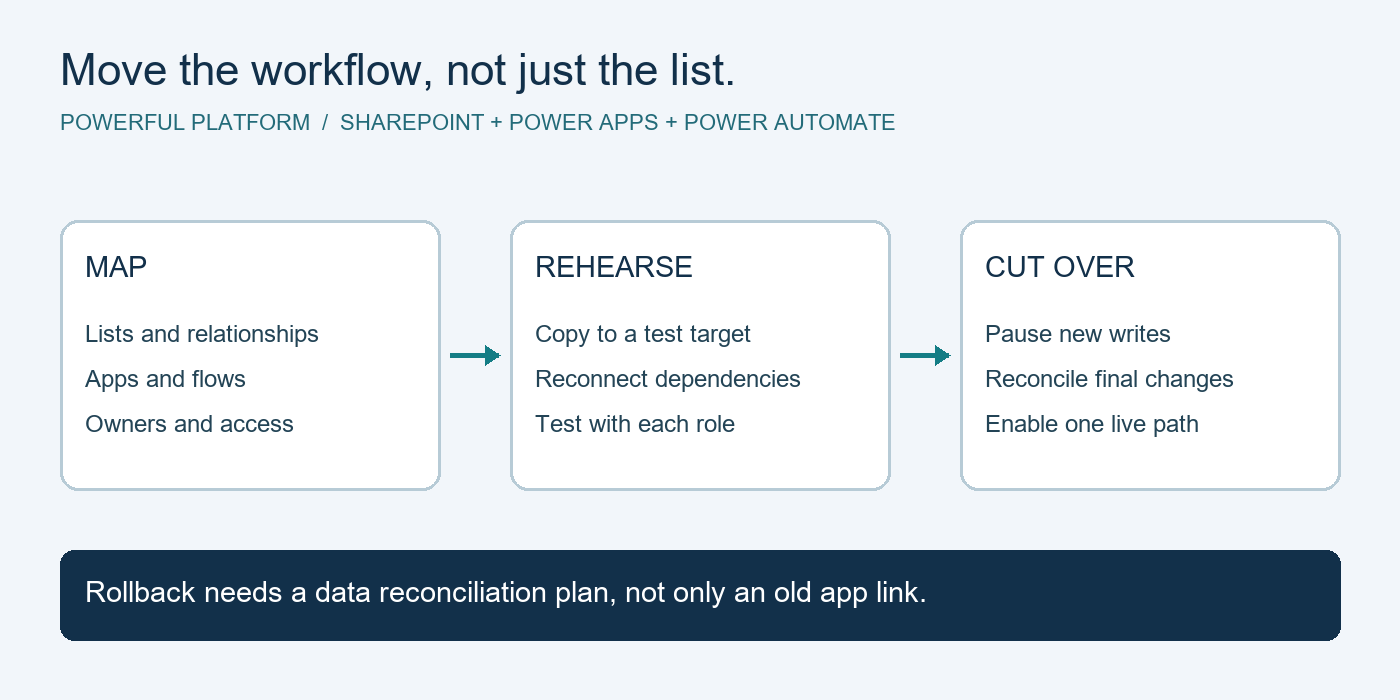
If the spreadsheet is mostly tracking, reporting, or collecting structured inputs, automation may be enough. If it is becoming a mission-critical system with heavy collaboration, complex dependencies, and growing security concerns, it may be time to look at SharePoint lists, Dataverse, or a more purpose-built application.
That is not a failure of Excel. It is a sign your business has grown. The right technology choice depends on scale, risk, and how central the process is to daily operations.
For many SMBs, excel automation with power automate is the right middle ground. It improves what already works, removes repetitive steps, and creates a more consistent way to run the business without forcing a full system overhaul. And when done thoughtfully, it turns spreadsheets from a source of friction into part of a more dependable, worry-free operation.
If your team is spending too much time maintaining spreadsheets instead of using the information inside them, that is usually the signal worth paying attention to.
Turn one spreadsheet bottleneck into a scoped project
Bring one recurring task to your assessment: client intake, an approval, a reminder or a report. Note how often it happens, who handles it and what goes wrong. Use a sample with confidential information removed for the initial discussion.
Powerful Platform helps Kitchener–Waterloo businesses implement business process automation with Microsoft Power Platform. We assess whether to keep Excel, organise documents in SharePoint or design a more suitable app.
- Define the outcome: measure time spent and choose a realistic improvement target.
- Confirm ownership: identify who approves and maintains the process.
- Agree the scope: document inputs, exceptions, licensing, testing and handover.
Book your free IT & automation assessment. Implementation, migration and custom automation are quoted separately.
Supporting an MSP client? Explore our SharePoint and Power Platform delivery for MSPs for scoped implementation and handover support.

Leave a Reply