

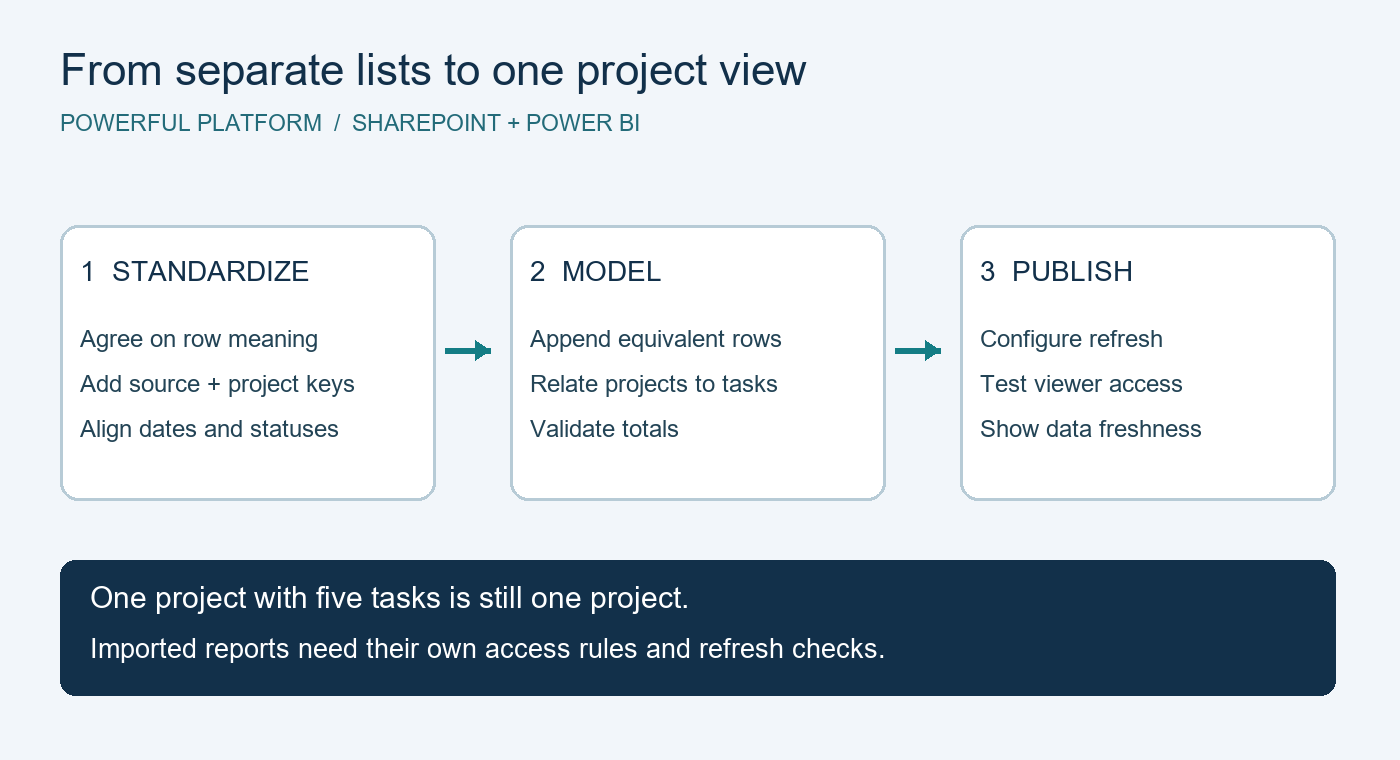
Each project team maintains a SharePoint list, but management still assembles a weekly summary by hand. Power BI can bring these records together. The important work starts before the charts: agree what a row means, preserve its source, and define who may see the combined data.
This high-level guide describes an imported Power BI report for internal project tracking. It is an original design proposal, not a customer implementation or a tenant-tested report package.
Prerequisites and intended outcome
Start with two representative SharePoint lists, authorized read access, Power BI Desktop, and a destination workspace. Agree the report audience and confirm publishing, sharing and viewing entitlements with your administrator. Microsoft 365 access alone should not be treated as proof that all Power BI sharing scenarios are covered.
The initial outcome should be modest: a project summary, an overdue-task view and a clear indication of data freshness. Keep updates in the source lists; this report is a reading and analysis surface, not an upload form.
1. Define a common reporting contract
Write down the meaning and type of each required field: project reference, title, status, owner and relevant dates. Decide whether each source contains one row per project, per task or per event. Do not append task rows to project rows simply because both contain a Title column.
Map variations such as “In progress” and “Active” only when the business confirms they mean the same thing. Keep missing dates visible as a quality issue rather than silently treating them as completed work.
2. Preserve identity across sites
A SharePoint item ID is local to its list. Item 12 on one site is not necessarily the same project as item 12 elsewhere. Add source-site and source-list identifiers, and construct a stable composite record key or use a governed project ID shared across systems.
Include a source link so an authorized reviewer can inspect the underlying item. Avoid bringing personal or sensitive columns into the model unless the report actually needs them.
3. Connect and normalize in Power Query
Use the SharePoint Online list connector with the site address and select the intended list. Transform each source into the agreed columns and data types before combining it. For lists representing the same kind of record, append their rows. Keep separate entities, such as projects and tasks, in separate tables.
Microsoft’s SharePoint Online list connector documentation explains implementation 2.0, view behavior and lookup-related join limits. Bring in only the necessary columns and test changes to source views or schemas before relying on them in production.
4. Model relationships before calculating totals
Use a unique project table related to the task table through the agreed project key. A project with five tasks should count as one project and five tasks. Flattening everything into one table can repeat project-level values and inflate budgets or project counts.
Document each measure’s definition. For example, “overdue” might mean a task has a due date before the agreed reporting date and is not complete. Specify how cancelled tasks, missing dates and time zones are handled. Check a small synthetic example by hand before expanding the report.
5. Make refresh an operational responsibility
Publish the report, configure its data-source credentials and refresh schedule, then verify a successful refresh in the Power BI service. A successful Desktop refresh does not prove the service connection is ready. Assign an owner to investigate refresh failures and credential changes.
Show a clearly defined model-refresh timestamp and, where useful, the latest source modification time. These answer different questions: recently loading old source data does not make that source current. Follow Microsoft’s scheduled refresh guidance. An imported report should not be presented as a live view of every list edit.
6. Test permissions on the combined report
Do not assume SharePoint item permissions automatically become row-level security in an imported model. Review workspace access and report distribution separately. If viewers need different subsets of data, design and test appropriate row-level security rules.
Microsoft’s Power BI row-level security guidance explains role behavior, including that workspace Admins, Members and Contributors are not restricted by RLS in the same way as Viewers. Validate with representative viewer accounts and review export and sharing permissions. A slicer that hides other projects is not an access-control rule.
Before rollout
Reconcile source and report row counts, verify distinct project counts, test duplicate keys, and check tasks with missing project references. Change one synthetic record and confirm it appears after the expected refresh. Test a source-column change, a failed refresh and the views of different audiences.
This design does not include write-back, anonymous access or guaranteed real-time reporting. Large or complex workloads may need a different data architecture. No PBIX file or app export is attached, and no tenant execution tests were performed for this guide.
Need help defining your project key or measure? Use the request template on Powerful Platform’s free community help page. Share a synthetic example and the intended result, without credentials or private data. Response availability is not guaranteed.
Research note: a public search result for a multi-project reporting opportunity informed the general problem. Retrieved October 19, 2026; posting date was not verified and direct retrieval returned an access restriction. Current availability is unverified. This guide does not reproduce the client specification.

Leave a Reply