
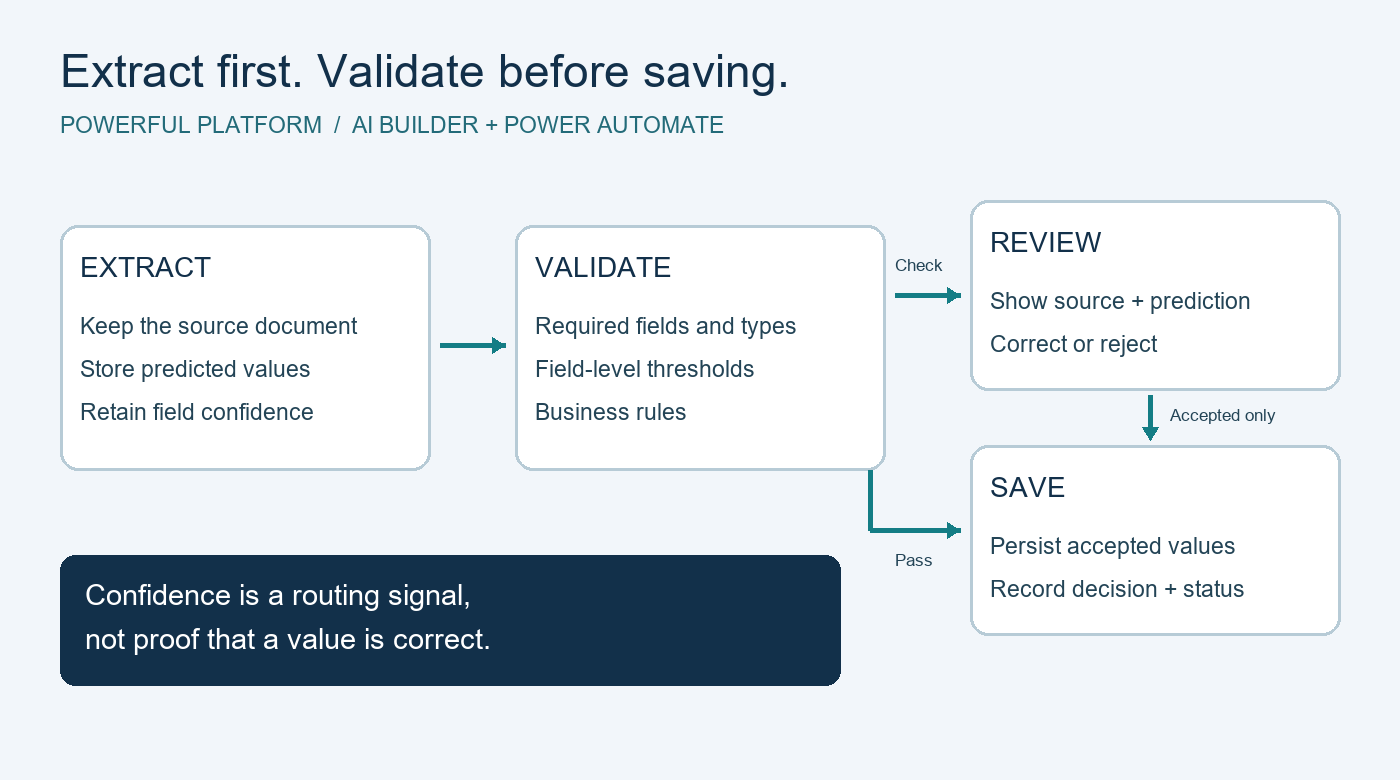
A document-processing flow can extract a plausible value from the wrong place on a page. If that value immediately updates a business record, the mistake becomes harder to spot. A review gate gives uncertain or inconsistent extractions somewhere useful to go.
This guide proposes a high-level pattern using AI Builder, Power Automate and a restricted SharePoint review list. The intended outcome is an accepted record with traceable source evidence, or an explicit review task. It is not a deployed solution or a tested flow export.
Prerequisites and scope
Choose one document family and a small set of fields. You need a suitable published document-processing model, an authorized document location, Power Automate access and reviewers who understand the records. Use synthetic or approved sample documents during development.
Confirm environment availability, connector permissions and current AI Builder capacity and licensing before estimating costs. Model execution can consume capacity; do not assume an existing Microsoft 365 subscription makes processing free. Microsoft’s AI Builder licensing overview is the starting point for that check.
1. Keep source evidence separate from accepted data
Store the original file in a controlled document library and give each intake record a stable reference. Keep extraction output separate from the fields that downstream processes treat as accepted. Suggested review fields include source link, processing status, extracted values, validation reasons and final accepted values.
A practical status sequence is Received, Extracted, Needs review, Accepted, Rejected or Failed. Keep technical failures separate from documents that were successfully read but need interpretation.
2. Capture values and their confidence scores
Call the appropriate AI Builder document-processing action and retain the relevant field values and confidence scores. Microsoft’s Power Automate integration reference describes these outputs, including confidence values in the range zero to one.
Use field-level checks rather than letting a high average hide one uncertain critical field. When a required score or value is missing, route the record for review instead of substituting an optimistic default. Store only the output needed for validation and audit, with appropriate access restrictions.
3. Combine confidence with ordinary validation
Check required fields, expected data types and permitted formats. Then apply business rules: does a product reference exist in the approved catalogue, is a date plausible, and are related values consistent? An extraction can have high confidence and still fail these checks.
Choose thresholds using representative documents and the consequences of accepting an error. A threshold is a project decision, not a universal guarantee. Microsoft’s confidence-score guidance explains how scores support review. Do not describe a score of 0.9 as proof of 90% real-world accuracy for your workflow.
4. Give reviewers enough context to decide
Create a review item containing the source link, predicted fields and specific reasons for the check. For example, a synthetic record could say “Reference missing” or “Quantity format invalid.” Let the reviewer compare the document, correct a value, accept the record or reject it.
Record the decision, corrected values and review time under your organization’s retention rules. Restrict both the review list and source library to the right people. Sending someone a link does not grant the permissions needed to open it.
5. Save only after the gate is satisfied
Write accepted values to the destination only after the checks pass or an authorized reviewer resolves the issues. Preserve the original prediction so a later audit can distinguish extraction from correction. Revalidate edited values before saving.
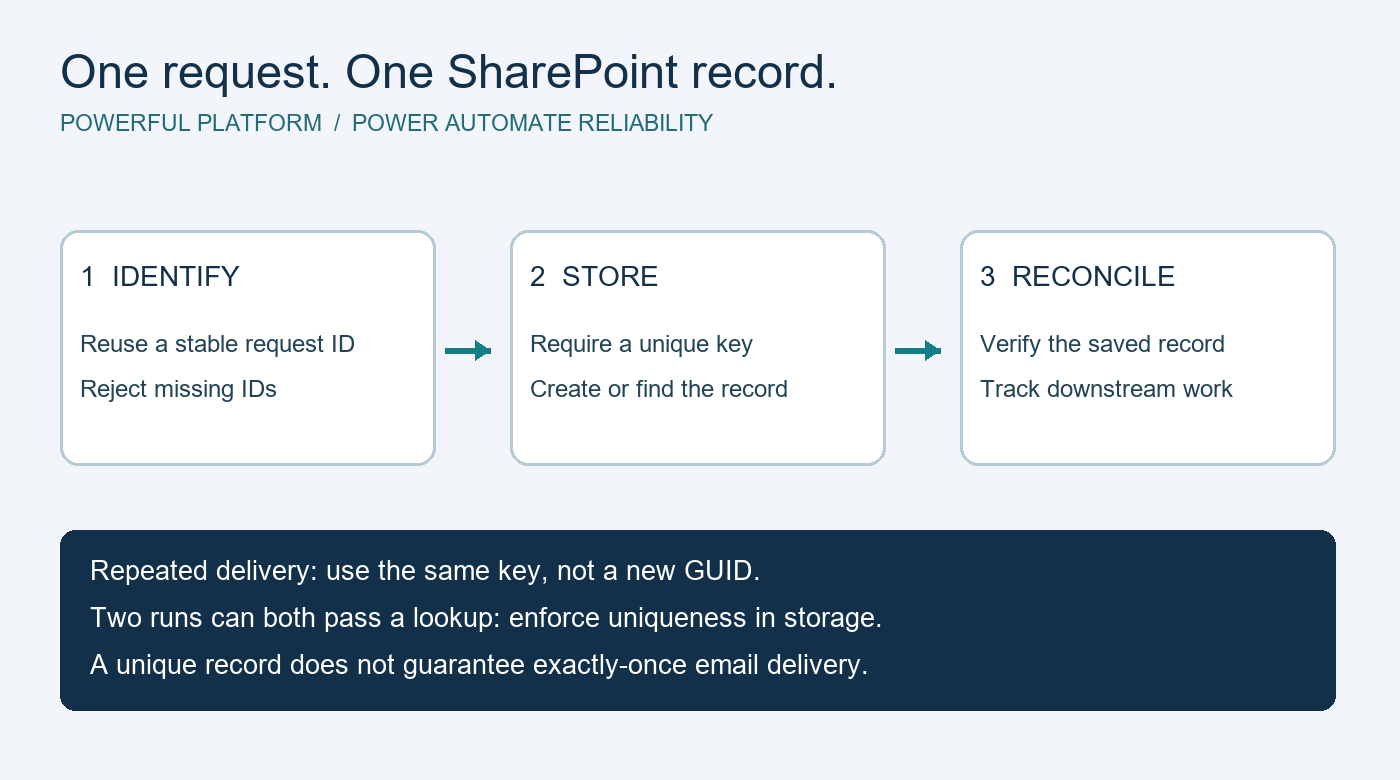
Protect the final write against retries using a stable intake key and the destination’s supported uniqueness controls. A reviewer clicking twice or a replayed flow should not create two accepted records. For that separate concern, see our SharePoint duplicate-prevention guide.
6. Measure the gate, not just successful runs
Test clear scans, unusual layouts, missing fields, invalid values and documents that extract confidently but incorrectly. Use a held-out evaluation set rather than testing only documents used to train the model. Compare accepted values against known answers and record incorrect automatic acceptances, review volume and processing failures.
Begin a pilot with human review of every record, then consider selective routing only when the evidence supports it. Review model or document-layout changes before relaxing controls. Correcting a review item does not by itself retrain the model; improvement needs a deliberate process.
Limitations and next steps
This design does not guarantee extraction accuracy, replace business authorization or establish compliance with a regulated process. Capacity exhaustion, unsupported documents and connector failures need their own recovery paths. No model was trained or executed for this guide, and no importable package is attached.
Need help deciding which fields should trigger review? Use the request template on Powerful Platform’s free community help page. Describe the document type and expected result with synthetic examples. Leave out credentials and private documents. Response availability is not guaranteed.
Research note: a public search result for an AI Builder document-processing opportunity highlighted validation and manual-review needs. Retrieved October 20, 2026. Its absolute posting date was not verified and direct retrieval returned an access restriction; current availability is unverified. This original guide generalizes the problem without reproducing the project specification.

Leave a Reply