

An invoice sitting in someone’s inbox is not a minor administrative issue. It can lead to late fees, strained vendor relationships, duplicate payments, and a month-end scramble to determine what was actually approved. This Power Automate invoice approval example shows how a small business can turn a manual handoff into a clear, accountable process using tools many teams already have in Microsoft 365.
The goal is not to make accounts payable feel more complicated. It is to make the right next step obvious: capture the invoice, confirm the information, send it to the correct approver, record the decision, and notify the person responsible for payment. For a growing business, that structure creates better financial control without requiring an enterprise accounting department.
What an invoice approval workflow should solve
Most small businesses begin with an informal process. A vendor emails an invoice, an administrator forwards it to a manager, and someone replies with an approval that may be difficult to find later. That approach can work when invoice volume is low and one person has full visibility. It becomes risky when more employees, departments, recurring vendors, and approval limits are involved.
A useful workflow should answer four questions quickly: Who submitted the invoice? Who needs to approve it? What decision was made? Has the invoice been sent for payment? If your team cannot answer those questions without searching through emails and chat messages, the process needs more structure.
Power Automate can coordinate the work between an invoice mailbox, SharePoint or Microsoft Lists, Outlook, Teams, and an accounting process. It does not replace your accounting platform or financial policies. Instead, it puts those policies into action consistently and creates a record that is easier to review.
Power Automate invoice approval example: a practical design
Consider a professional services firm that receives vendor invoices in a dedicated accounts payable mailbox. The office manager reviews incoming documents, department leads approve charges related to their teams, and a finance manager gives final approval for invoices above $2,500. Once approved, the invoice must be entered into the accounting system by the person handling payments.
The workflow can be designed in five connected stages:
- A new email arrives in the accounts payable mailbox with an invoice attachment. Power Automate creates a record in a SharePoint list and saves the attachment in a controlled document library.
- The office manager receives a request to confirm key details, such as vendor name, invoice number, due date, department, amount, and cost category. This step matters because the information in an emailed attachment is not always ready for reporting or routing.
- Based on the selected department, the flow sends an approval request to the appropriate department lead. The approver can approve, reject, or request clarification directly from Teams, Outlook, or the Power Automate approvals experience.
- If the invoice amount exceeds $2,500, the flow sends a second approval request to the finance manager. If it falls below that threshold, the workflow moves forward after the department approval.
- After final approval, the SharePoint record is updated to Approved and the payment coordinator receives a notification with the invoice details and stored file. If an approver rejects the invoice, the office manager receives the rejection reason and the record is marked accordingly.
This process creates a single source of truth outside individual inboxes. It also gives management a practical audit trail: submission date, assigned approvers, responses, comments, payment status, and the original invoice are all tied together.
Build the workflow around policy, not the tool
The most common automation mistake is building a flow before deciding how approvals should work. Power Automate can route an invoice almost any way you ask it to, including ways that create confusion or weaken controls.
Start by defining the approval rules in plain language. For example, invoices may go to the department lead first, then finance when the amount is above a set threshold. Software subscriptions may require approval from the IT lead. Recurring invoices under an agreed contract may need a lighter review process, while new vendors always require additional scrutiny.
Keep these rules proportionate to the business. Requiring three approvals for every $75 office supply order slows people down and encourages workarounds. On the other hand, allowing any employee to approve a large unbudgeted expense leaves the business exposed. The right balance depends on invoice volume, spending authority, vendor risk, and who is accountable for the budget.
Approval limits should be documented and reviewed when roles change. A well-built flow should use a maintained list of approvers rather than embedding names directly in multiple workflow steps. That way, when a manager leaves or a department reorganizes, your team can update the routing source without rebuilding the entire process.
Choose the right place to store invoice data
For many small and medium businesses, a SharePoint list is a sensible place to track invoice status and approval information. It works well with Microsoft 365, supports permissions, and gives administrators a straightforward view of open, approved, rejected, and paid invoices.
The list should include enough information to route and report on invoices without exposing unnecessary financial data. Typical fields include vendor, invoice number, amount, due date, department, approver, status, payment reference, and a link to the stored document. The document itself can be kept in a SharePoint library with access limited to the appropriate finance and operations staff.
If your accounting platform already provides strong invoice intake and approval capabilities, duplicating the entire process in Power Automate may not be wise. In that case, Power Automate may be more valuable for notifications, exception handling, document collection, or connecting systems that do not communicate well. The best design fits the systems your team relies on rather than adding another place to do the same work.
Handle exceptions before they become bottlenecks
Invoice workflows need a path for the situations that do not fit the standard route. An invoice may be missing a purchase order, arrive without a clear department, contain a duplicate invoice number, or wait too long for an approver who is away.
Build those exceptions into the workflow from the beginning. For incomplete invoices, send the record to a Needs Information status and notify the person responsible for follow-up. For overdue approvals, send a reminder after a defined period and escalate to an alternate approver if there is still no response. For possible duplicates, compare the vendor name and invoice number against existing records before sending another approval request.
These controls reduce the need for staff to monitor the flow manually. They also prevent the automation from silently stalling, which can be just as frustrating as the email-based process it was meant to improve.
Use AI extraction carefully
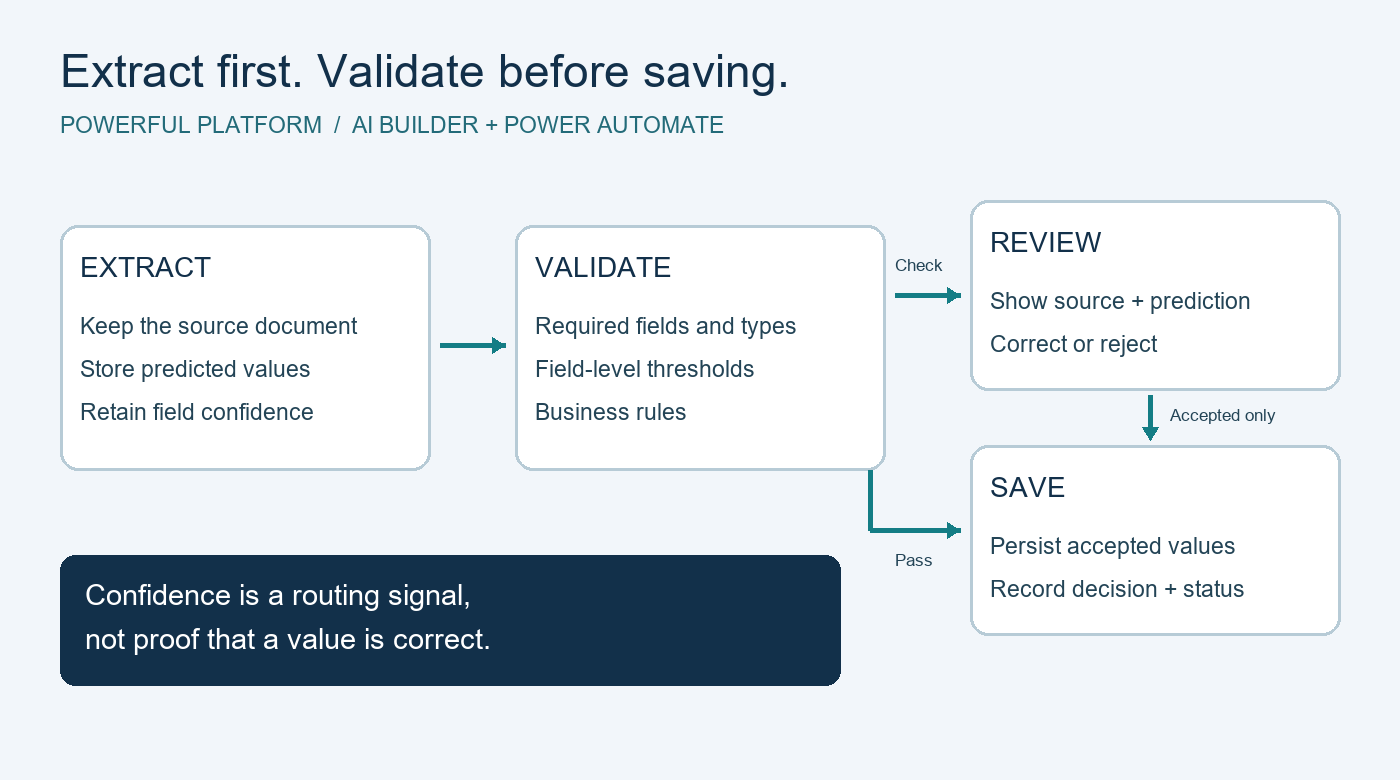
Invoice data extraction can reduce manual entry, particularly when a business receives a large number of similarly formatted invoices. Microsoft tools can identify details such as vendor, invoice number, total amount, and due date from uploaded documents. That information can then populate the invoice record and start the approval process.
However, extraction should be treated as a time-saver, not an unquestioned financial control. Vendor layouts vary, scanned documents can be unclear, and totals may be read incorrectly. A human review step is still appropriate before an invoice is routed or paid, especially for new vendors, higher-value invoices, or documents with low-confidence extraction results.
For lower invoice volumes, a simple form-based intake step may be more reliable and less expensive than adding advanced document processing. Automation should remove repetitive work, not introduce complexity that outweighs the benefit.
Security and accountability matter
Invoices contain sensitive business information, including banking details, pricing, vendor contacts, and purchase history. Access should follow job responsibilities. An employee who submits an invoice does not necessarily need access to every financial record, and an approver should not be able to alter payment details without proper oversight.
Use dedicated service accounts or managed connections where appropriate, restrict the invoice library and list permissions, and avoid sending full invoice attachments through broad Teams channels. Review who owns the flow and who can edit it. If the workflow is tied to one employee’s personal account, it may stop working when that person changes roles or leaves the company.
It is also wise to separate approval from payment whenever possible. The employee approving a cost should not be the only person able to release the payment. Even a lean finance team can create meaningful checks through clear roles and recorded approvals.
Measure whether the process is helping
Once the flow is live, track the outcomes that matter to operations: average time to approval, invoices nearing their due date, rejection reasons, overdue approvals, and the number of invoices requiring manual correction. These measures show whether the workflow is reducing friction or simply moving it to a different screen.
A monthly review is usually enough for a smaller organization. Look for recurring bottlenecks, such as one department that consistently delays approvals or vendors that submit incomplete documents. Then refine the policy, routing, or intake requirements based on what the data shows.
A dependable invoice workflow gives your team more than faster approvals. It gives leaders confidence that spending is visible, responsibilities are clear, and routine finance work will keep moving when the business is busy. With thoughtful design and ongoing support, Powerful Platform can help make that process part of a broader, worry-free approach to business technology.

Leave a Reply